Step 1
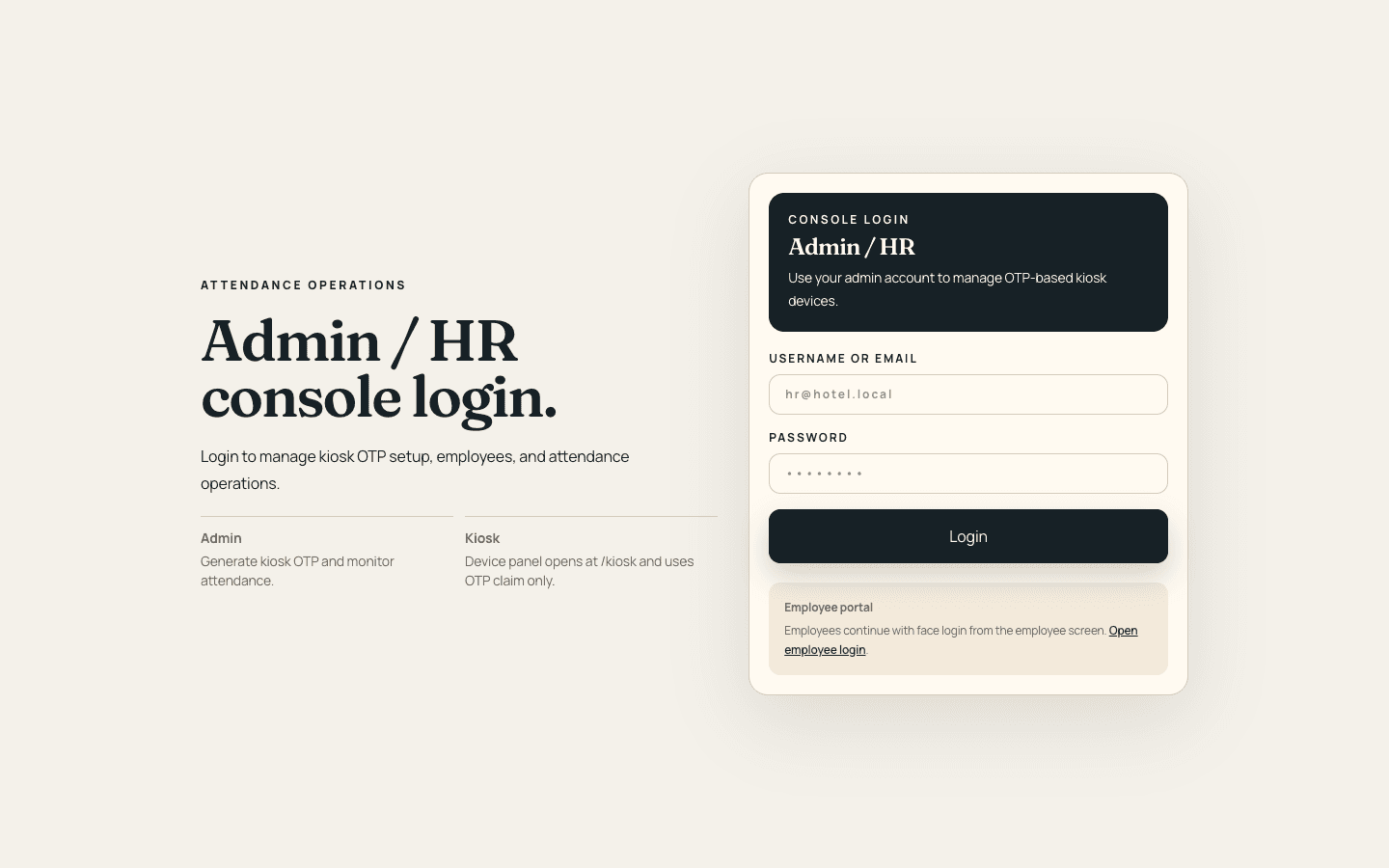
HR/Admin Login
Sign in using HR/Admin credentials provided by the internal admin owner.
Admin Setup Guide
Full setup guide for admin operations and kiosk deployment. For kiosk-only onboarding, use /setup.
Step 1
Sign in using HR/Admin credentials provided by the internal admin owner.
Step 2
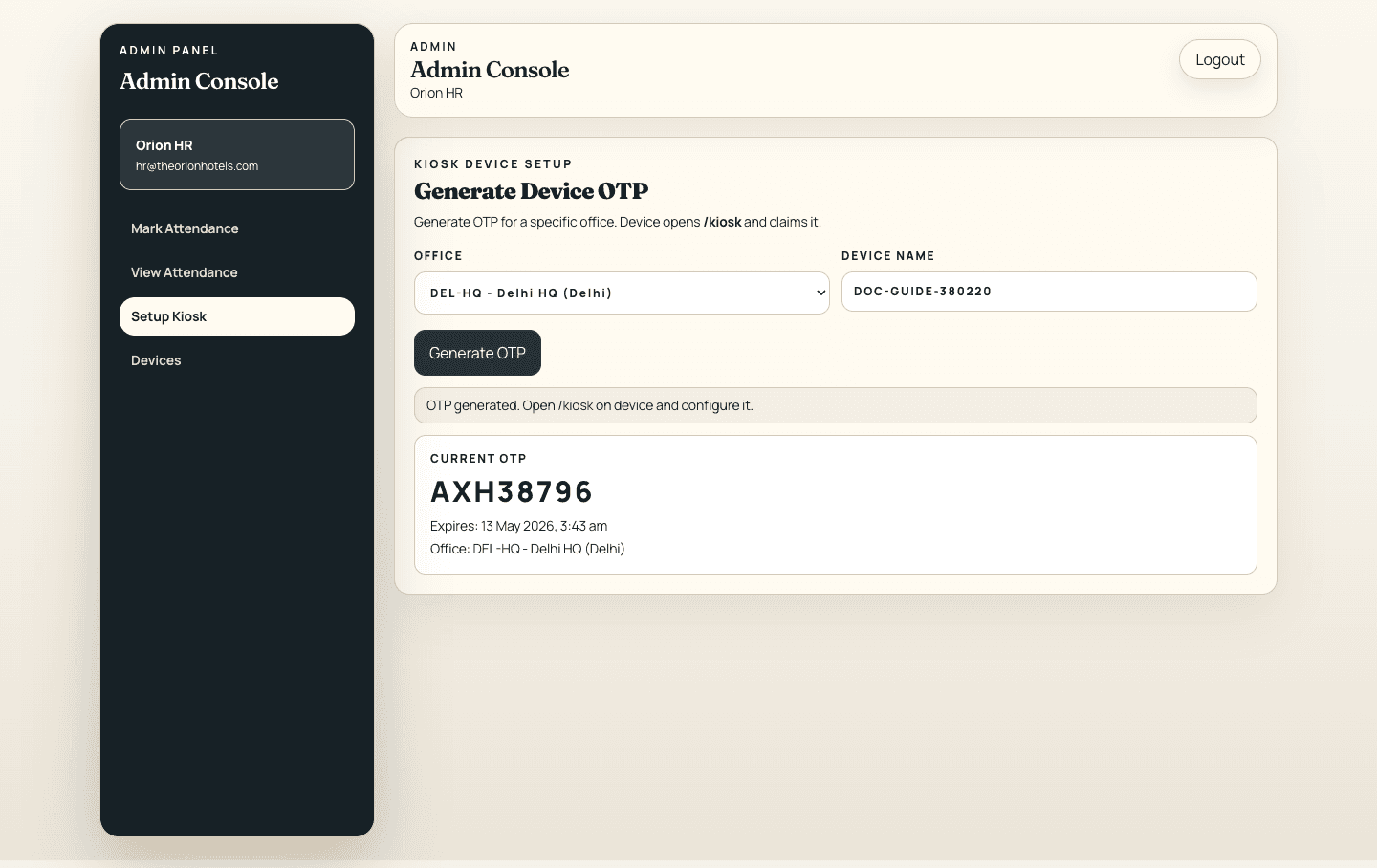
Select office and generate OTP setup code for the kiosk device.
Step 3
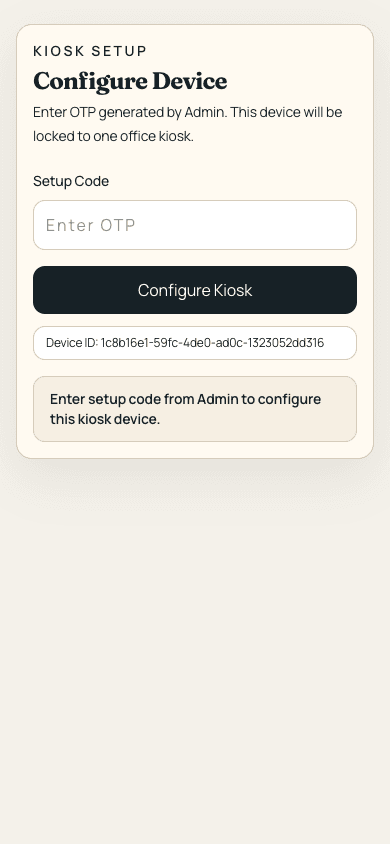
Open kiosk screen on the device and enter OTP to claim office kiosk.
Step 4
Use the configured kiosk daily for Punch In and Punch Out.
| Screen | Link |
|---|---|
| HR/Admin Login | https://hr.theorionhotels.com/admin-login |
| Kiosk Device Screen | https://hr.theorionhotels.com/kiosk |
| Admin Mark Attendance | https://hr.theorionhotels.com/admin/mark-attendance |
| Admin View Attendance | https://hr.theorionhotels.com/admin/employees |
| Admin Setup Kiosk (OTP) | https://hr.theorionhotels.com/admin/kiosk-setup |
Link: https://hr.theorionhotels.com/admin-login
Inputs Required
What to do: Open the link, enter credentials, then click Login.
Expected result: Admin panel opens with Mark Attendance, View Attendance, Setup Kiosk, and Devices.
Link: https://hr.theorionhotels.com/admin/kiosk-setup
Inputs Required
What to do: Generate OTP and note the code with expiry shown on screen.
Expected result: Setup OTP is created and ready for kiosk configuration.
Link: https://hr.theorionhotels.com/kiosk
Inputs Required
What to do: Open kiosk link on physical kiosk device, enter OTP, and complete setup.
Expected result: Device gets assigned to selected office and opens kiosk attendance panel.
Link: https://hr.theorionhotels.com/kiosk
Inputs Required
What to do: Keep kiosk on this screen and process employees one by one.
Expected result: Face verification runs and attendance is recorded for configured office.
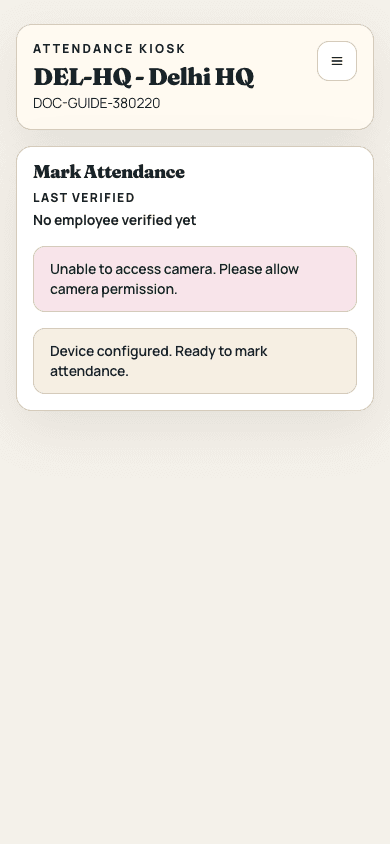
Link: https://hr.theorionhotels.com/kiosk
Inputs Required
What to do: Use menu to move from Mark Attendance to attendance list view.
Expected result: Kiosk office attendance list becomes visible.
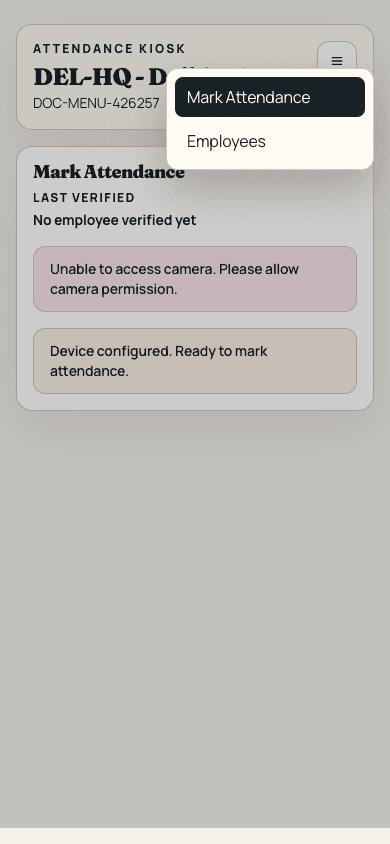
Link: https://hr.theorionhotels.com/kiosk
Inputs Required
What to do: Check employee status and scroll list for check-in/check-out information.
Expected result: Readable office-wise attendance view is available directly on kiosk.
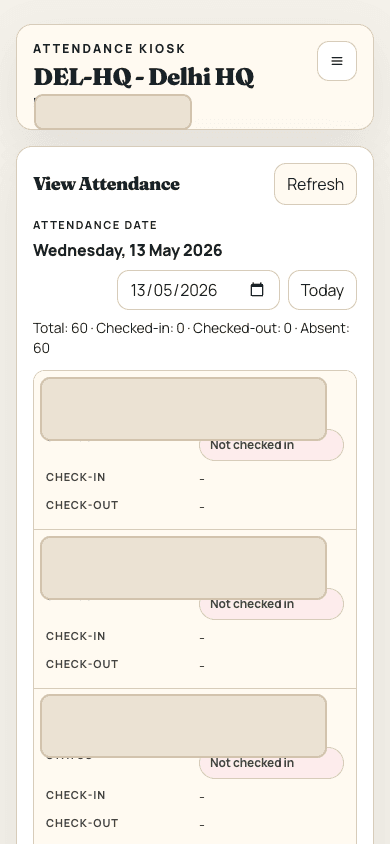
Link: https://hr.theorionhotels.com/admin/employees
Inputs Required
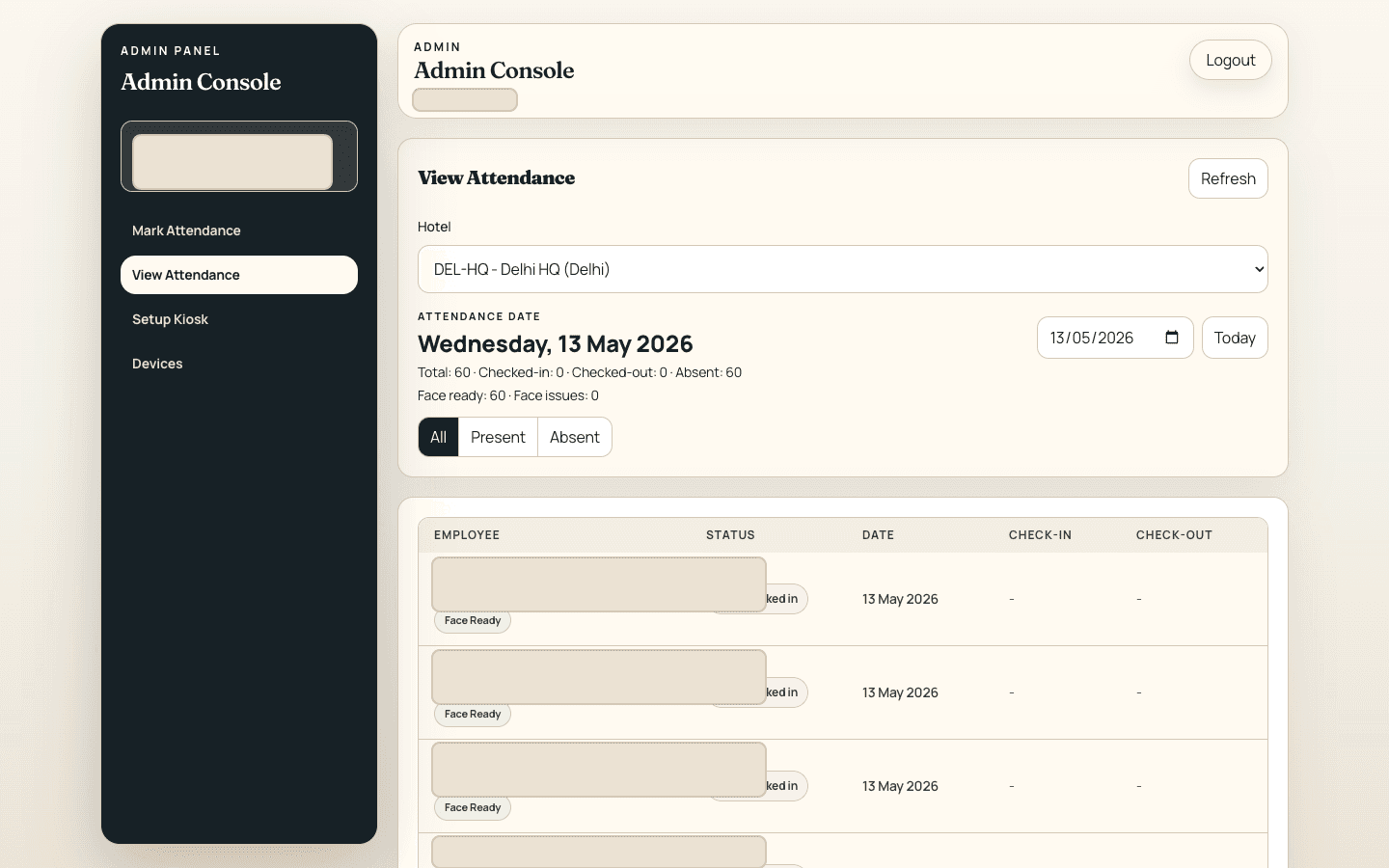
What to do: Use View Attendance section with office/date filters.
Expected result: Admin can monitor attendance records and status by office.