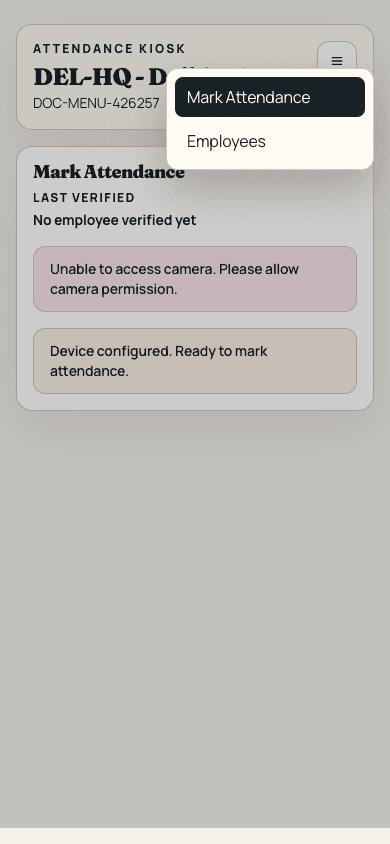
Step 1
Install PWA
Open kiosk link on mobile and install it on home screen.
Kiosk Setup Guide
Install the kiosk PWA on mobile, configure it with OTP, and start attendance marking. For the full admin guide, open /admin-setup.
This page is only for kiosk-device operators. OTP creation is handled in Admin setup.
Step 1
Open kiosk link on mobile and install it on home screen.
Step 2
Ask HR/Admin for kiosk setup OTP for your office.
Step 3
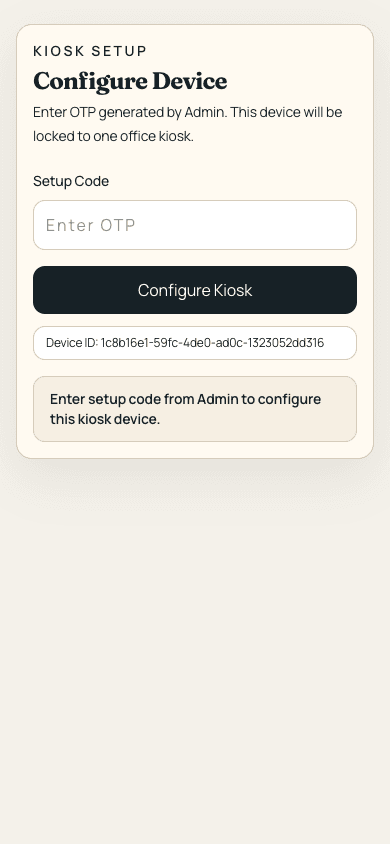
Enter OTP on the kiosk device and complete setup.
Step 4
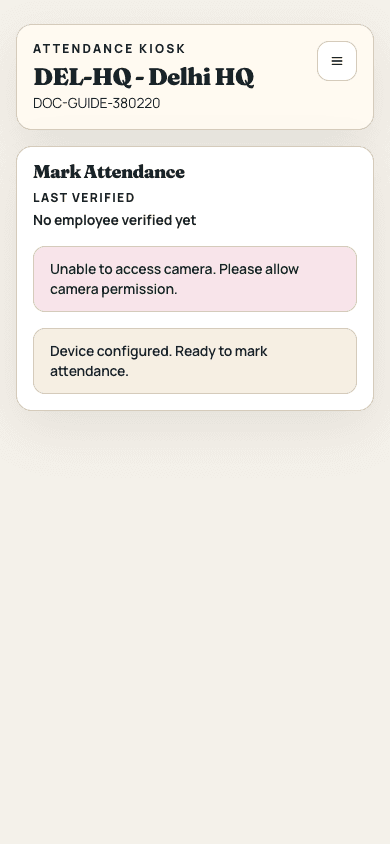
Capture face, choose Punch In/Punch Out, and complete attendance.
| Screen | Link |
|---|---|
| Kiosk Panel | https://hr.theorionhotels.com/kiosk |
Link: https://hr.theorionhotels.com/kiosk
Inputs Required
Instructions
Expected result: Kiosk PWA is installed and ready for OTP setup.
Link: https://hr.theorionhotels.com/kiosk
Inputs Required
Instructions
Expected result: You now have an office-specific OTP from HR/Admin.
Link: https://hr.theorionhotels.com/kiosk
Inputs Required
Instructions
Expected result: Device gets assigned to selected office and opens kiosk attendance panel.
Link: https://hr.theorionhotels.com/kiosk
Inputs Required
Instructions
Expected result: Face verification runs and attendance is recorded for configured office.
Link: https://hr.theorionhotels.com/kiosk
Inputs Required
Instructions
Expected result: Office-wise attendance list is visible on kiosk.